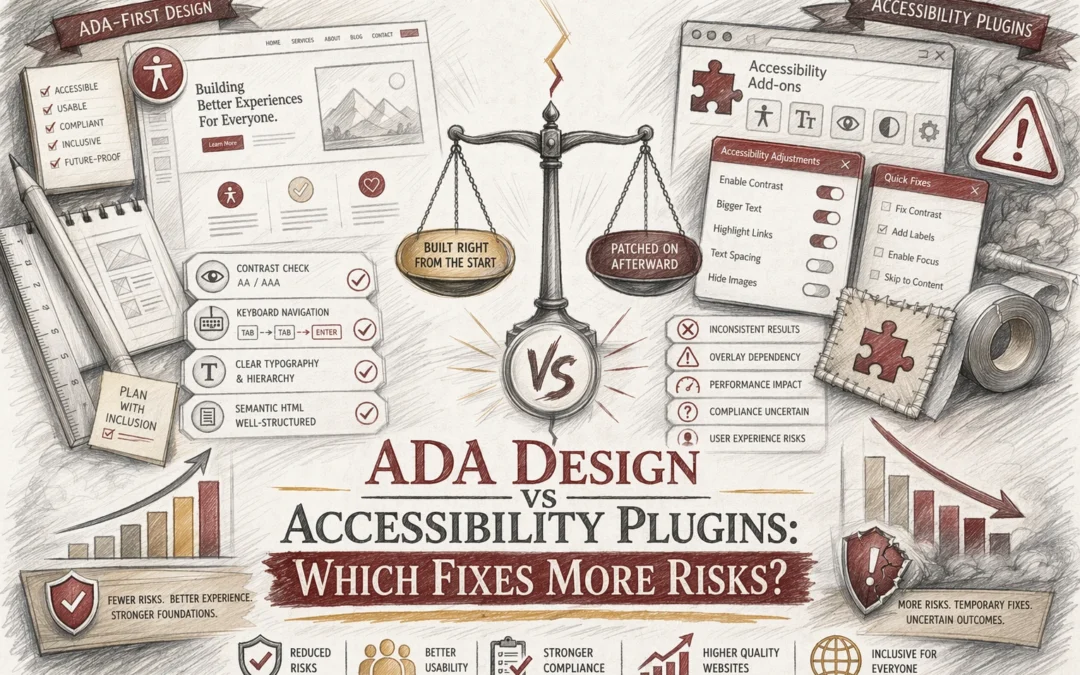
Quick Summary: ADA design fixes address the actual code and structural barriers on a website, reducing legal and accessibility risks more effectively than plugins. While plugins offer quick usability improvements, they cannot reliably fix underlying issues like forms, headings, or alt text. For strong risk mitigation, businesses should prioritize source-level remediation over relying solely on accessibility overlays. Combining both approaches can help, but real code fixes provide the most defensible compliance. US businesses facing lawsuit risk need a clear answer: ADA Design Issues usually create more exposure than Accessibility Plugins can fix. Small teams want lower Website Accessibility Risks without wasting money. We work from real audit patterns, claim trends, and remediation practice. This comparison shows where ADA Design Issues need code-level fixes, where plugins help, and which ADA Design Issues deserve priority first.
ADA design means fixing the site itself. It suits businesses that want stronger ADA and WCAG risk control by changing code, structure, forms, navigation, and contrast. Key strengths
Accessibility plugins add a widget, user controls, scans, and some automated fixes. They fit teams that need quick support features fast, but they do not fully solve deeper structural issues. Key strengths
Fast to add
Helpful for quick usability improvements
Which option reduces ADA website risk more effectively?
Source-level fixes reduce more risk. They change the actual code, content, and structure that audits test and users depend on. The DOJ’s web rule for public entities points to technical standards, not widgets layered on top of broken pages, as shown in the ADA.gov compliance guide. The FTC also took action in 2025 against claims that an automated overlay could make any site compliant, in its accessiBe order announcement.
Comparison of code fixes and overlay plugins for ADA compliance
Plugins still help in a limited way:
add user controls like contrast or text size
flag obvious issues fast
support short-term triage on large sites
Useful plugin features can improve usability, but they do not replace design remediation, keyboard fixes, form labels, heading structure, or alt text.
What each approach fixes-and what it leaves exposed
Structural barriers that design must resolve Real ADA risk drops when you fix the site itself. That means heading order, form labels, keyboard focus, menu logic, error handling, alt text, table markup, and color contrast in source code. DOJ guidance for public entities points to specific web and app access rules, not toolbar shortcuts, in its web accessibility fact sheet.
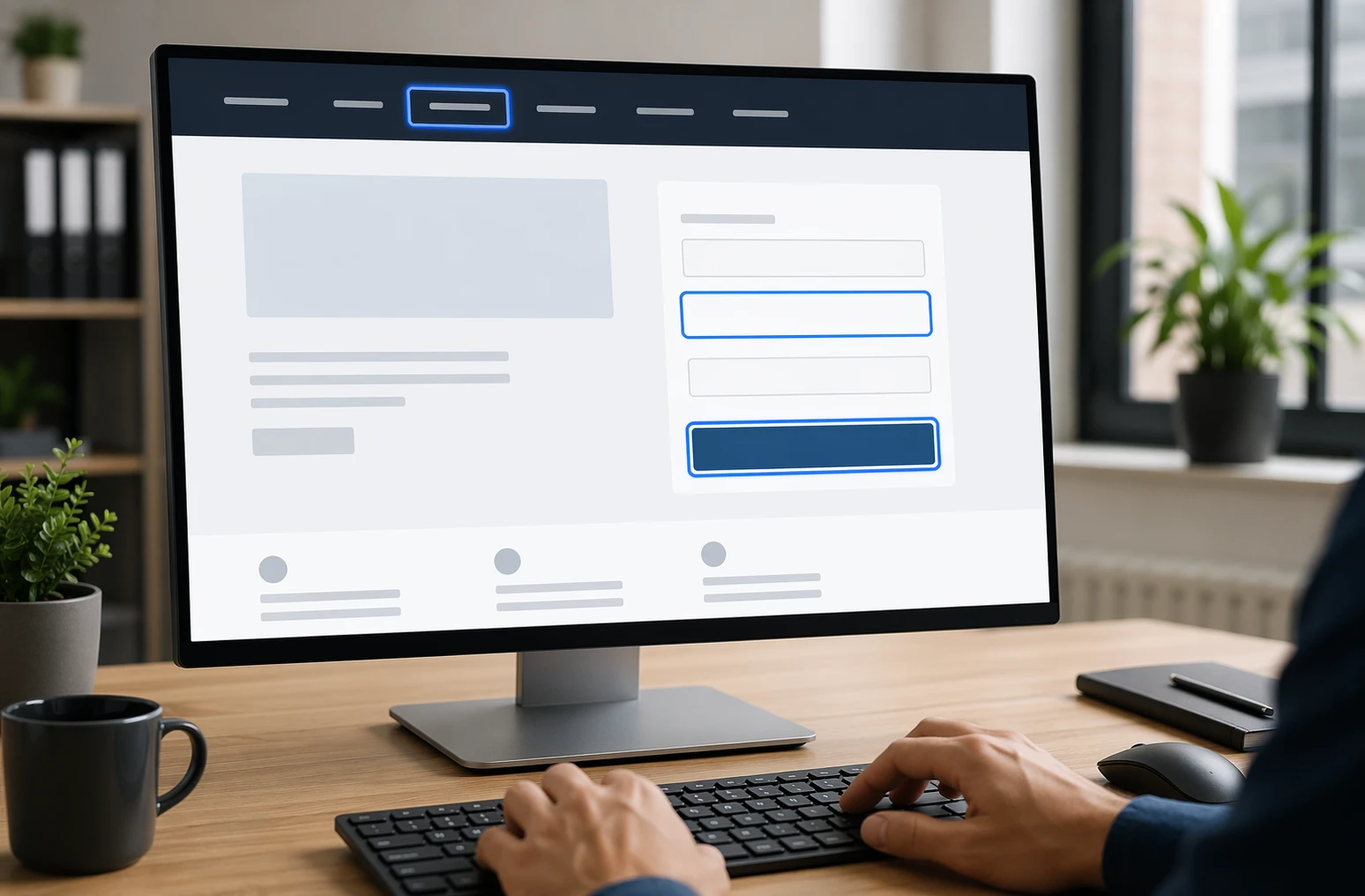
Website designer reviewing keyboard navigation and form labels
Why plugin-only fixes leave residual risk A plugin may help with font size, contrast toggles, or pausing motion. It does not reliably repair broken structure underneath. The FTC alleged one major overlay vendor failed to make basic items like menus, headings, tables, images, and recordings accessible in many cases, per the FTC complaint.
A widget can add options. It cannot replace real remediation.
Choose ADA design first if risk reduction is the priority. DOJ says businesses open to the public must make online goods and services accessible, and its guidance points to real barriers like forms, alt text, captions, and keyboard access, not just toolbar settings DOJ web accessibility guidance.
Use a plugin only as a supplement. A widget may help some users with display controls, but it does not fix deeper code, content, or navigation problems. The American Bar Association notes overlays are quick fixes and are not recommended as the full answer for Title III risk reduction ABA accessibility risk guidance.
Homepage
Skip patchwork fixes. Get a defensible, done-for-you ADA-friendly website with Monkey Business and reduce risk faster.
Frequently Asked Questions
Q1: How do ADA compliance elements differ between ADA Design and accessibility plugins?
ADA design fixes source issues like heading order, keyboard access, contrast, forms, and labels. Plugins mostly add front-end controls. They may help some users, but they usually do not repair the code problems that trigger complaints.
Q2: What are the legal risks of relying solely on accessibility plugins for compliance?
The main risk is false confidence. A plugin can sit on top of barriers while the site still fails keyboard, screen reader, or form tests. If a claim comes, you need real fixes, not just a widget.
Q3: Which accessibility fixes provide the most comprehensive risk mitigation for US businesses?
Start with structural fixes: semantic HTML, keyboard navigation, form labels, alt text, color contrast, focus states, error handling, and captioned media. That approach lowers risk more than overlays and gives you stronger proof of good-faith effort.
Conclusion
ADA design fixes reduce risk better because they repair real barriers. Plugins may help a little, but DOJ guidance still centers accessible results, not overlays or shortcuts ADA web guidance.
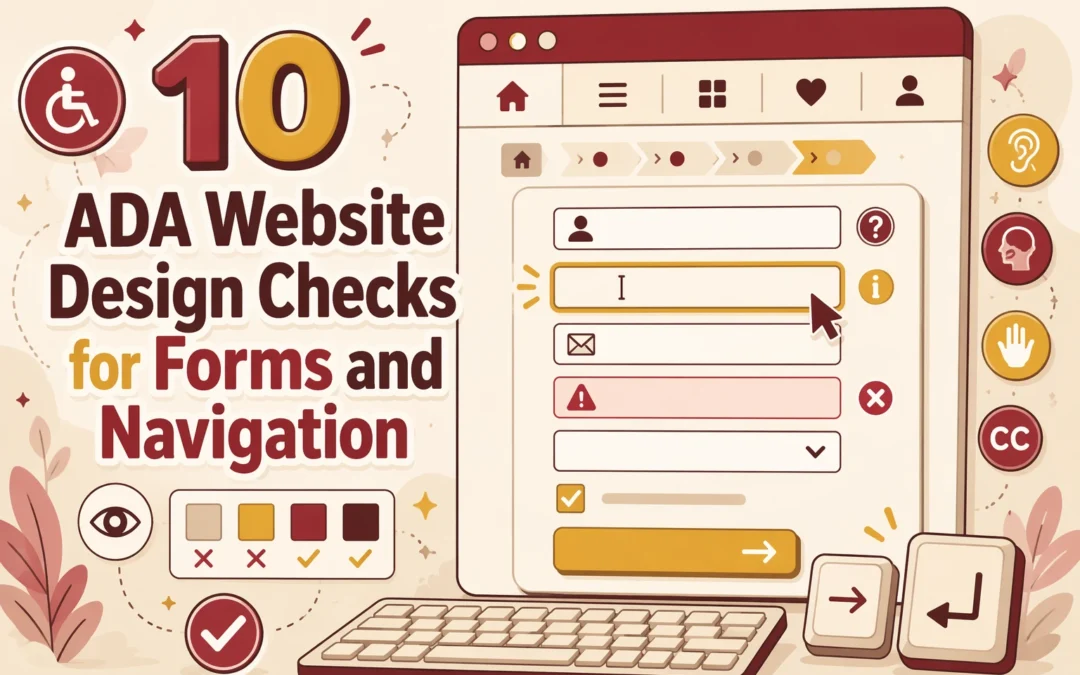
Quick Summary: The article emphasizes that website accessibility for ADA compliance hinges on key checks like keyboard navigation, visible focus indicators, clear menu labels, and properly labeled form fields. Fixing these issues first ensures users relying on keyboards or screen readers can complete tasks without barriers. Prioritizing these fixes helps prevent lost leads and improves overall usability, especially on critical pages like contact and checkout. Support from specialists like Monkey Business can streamline fixing high-risk accessibility problems.
A form that only works with a mouse or a menu that vanishes for keyboard users can kill leads fast. Many sites look fine but still fail basic tasks like moving through pages, opening menus, and sending forms. This guide ranks the top ADA fixes first. We chose these Website Navigation Checks, Form Accessibility Tests, and Website Compliance Checks based on real audit risk, WCAG fit, and speed to test. These Website Navigation Checks focus on what breaks most.
Quick Comparison
Check
Best for
What to verify
Common failure
Why it matters
Keyboard navigation works across menus and forms
Finding blockers that stop non-mouse users from completing basic tasks
Tab order, menu access, form field focus, and activation keys
Menus or form controls that only work with a mouse
Accessibility fails if the site cannot be operated by keyboard
Visible focus is easy to see
Helping keyboard users stay oriented while moving through navigation and forms
Clear focus outline, visible state changes, and no clipping
Focus ring removed or hidden by custom styling
Users must be able to track where they are before they can interact
Menu labels are descriptive and consistent
Making the main menu understandable to first-time visitors
Label clarity, consistency, and destination accuracy
Generic menu items that do not explain what users will find
Clear labels reduce confusion and improve task completion
Every form field has a visible label
Ensuring users understand what to enter into each field
Visible labels, correct association, and clear required-field cues
Placeholder-only fields or unlabeled controls
A form cannot be accessible if users do not know what each field means
What to know about ADA website form and navigation checks
Forms and menus decide whether a visitor can book, pay, call, or ask for help. That is why Website Navigation Checks matter so much. If someone uses a keyboard, screen reader, or phone, small design mistakes can stop the task cold.
ADA and WCAG rules focus on the basics that affect real use: clear labels, visible focus, logical tab order, steady movement, and helpful error messages. Strong Website Navigation Checks help you spot those blockers before they cost leads, trust, or access.
1. Keyboard navigation works across menus and forms
Keyboard access is the baseline test for operability. If users cannot tab through menus, fields, checkboxes, and submit buttons, the experience is broken before design even matters.
Highlights
Test Tab, Shift+Tab, Enter, and Space across menus and forms. WCAG says all functionality should work by keyboard, and focus order must stay logical. Specs
Best for: Finding blockers that stop non-mouse users from finishing tasks
Keyboard users need to see exactly where they are on the page. WCAG says focused items need a visible indicator, and focused elements should not be hidden by sticky headers or overlays per W3C focus guidance and focus not obscured guidance. Highlights
Check links, buttons, inputs, and menu items on desktop and mobile.
Watch for clipped rings, hidden states, and custom widgets with no clear focus. Pros
Easier menus and forms for everyone. Cons
Custom styling often removes the default ring. It ranks here because keyboard navigation fails fast when focus visibility is weak.
Form labels are non-negotiable for accessible lead capture. Placeholder text alone is not enough because it disappears and does not reliably label a field for users, as W3C explains.
Highlights
Check every input has a visible label tied to the right field, following W3C label guidance.
Use clear labels for required fields without color only.
Label each radio button and checkbox option separately.
Pros
Improves completion and usability fast.
Cons
Older templates may need markup fixes.
It ranks here because missing labels can stop form completion completely.
Last updated: July 20, 2026
Other checks worth keeping on your audit list
Want a fuller audit? Add these checks after the core fixes. They catch issues that often block form completion and confuse navigation.
5. Instructions appear before input.
6. Related fields stay grouped.
7. Errors name the issue and fix.
8. Link text says the destination.
9. Accessible names match labels.
10. Focus or input never triggers surprise changes.
How to choose the right ADA checks to fix first
Pick fixes by business risk, not by what seems easiest. Start here:
Fix keyboard access and visible focus first. If users cannot move through menus or forms, the rest does not matter.
Audit lead pages first: home, contact, service, booking, donation, and checkout pages.
Prioritize conversion points. Broken form fields, menus, and buttons cost real leads and sales.
Test desktop and mobile separately. Responsive menus often break in different ways.
Save error-message tuning for round two. Labels, focus, and keyboard access come first.
If you use custom UI, test that early. This is where Monkey Business stands out, since its done-for-you support helps small teams catch high-risk issues faster.
Homepage
Need help fixing ADA issues in forms and navigation? Monkey Business builds, hosts, and maintains compliant websites, so you can stop guessing and move faster.
Frequently Asked Questions
Q1: What are the key legal requirements for ADA website compliance in the US for small businesses?
Public-facing sites should offer equal access. Follow ADA expectations by meeting WCAG 2.1 AA standards, especially for forms, menus, keyboard use, labels, contrast, and error help.
Q2: How can I check my website’s ADA and WCAG 2.1 AA compliance effectively?
Test with keyboard-only use, screen readers, zoom, and color contrast checks. Review every form, menu, popup, and error state. Automated scans help, but manual testing finds the biggest real-world barriers.
Q3: What are the top 10 ADA website design checks for forms and navigation accessibility?
Focus on keyboard access, visible focus states, clear labels, grouped fields, error messages, skip links, logical tab order, menu usability, link purpose, and consistent navigation across pages.
Quick Summary: Accessible web navigation is easy to find, use, and skip, helping keyboard and screen reader users. Key fixes include making menus keyboard-friendly, adding skip links, and using clear labels and landmarks. Start by reviewing your site’s focus order and labels, then simplify and test your navigation. Good accessibility improves user experience for everyone and aligns with WCAG and ADA standards.
If people land on your service pages and cannot tell where to click, your navigation is losing leads. The same goes for keyboard users stuck in dropdown menus. This guide tackles that gap with practical Web Accessibility Tips, clear Site Navigation Improvement priorities, and Accessible UX Design basics. We use WCAG, USWDS patterns, and real business website needs to show which Web Accessibility Tips matter first, and which Web Accessibility Tips can wait.
What Accessible Navigation Looks Like
Accessible navigation is easy to find, easy to use, and easy to skip. It helps keyboard users, screen reader users, and anyone who wants a clear path through your site.
The core navigation patterns
Use a clear primary menu
Add a skip link to jump past repeated links
Mark page areas with landmarks like navigation and main content
Start with the fixes users feel right away: keyboard access and clear location cues.
1. Make every menu keyboard-friendly A menu fails fast if users cannot tab through it. Test your header, dropdowns, mobile menu, and footer links with only a keyboard. Keep focus order logical, show a clear focus state, and make sure users can open, move through, and leave menus without getting stuck. Use this quick check:
Tab reaches every link
Focus stays visible
Enter and Space work on triggers
Escape closes open panels
2. Use breadcrumbs and secondary navigation wisely Breadcrumbs help users know where they are and move back up the site. W3C says location cues like breadcrumbs reduce confusion, especially on deep pages, in WCAG 2.4.8 guidance. The W3C breadcrumb pattern also recommends a labeled navigation region and marking the current page with aria-current in its APG pattern.
Keep secondary navigation consistent across similar pages.
How to Apply Accessible Web Design Services to Your Site
Start with a real review, not guesses. Check your menu, header, footer, forms, and page templates with keyboard-only use and screen reader basics. WCAG 2.2 is the current W3C standard, and it expects navigation that works in a logical focus order and supports bypassing repeated blocks like menus WCAG 2.2 and W3C guidance on bypass blocks.
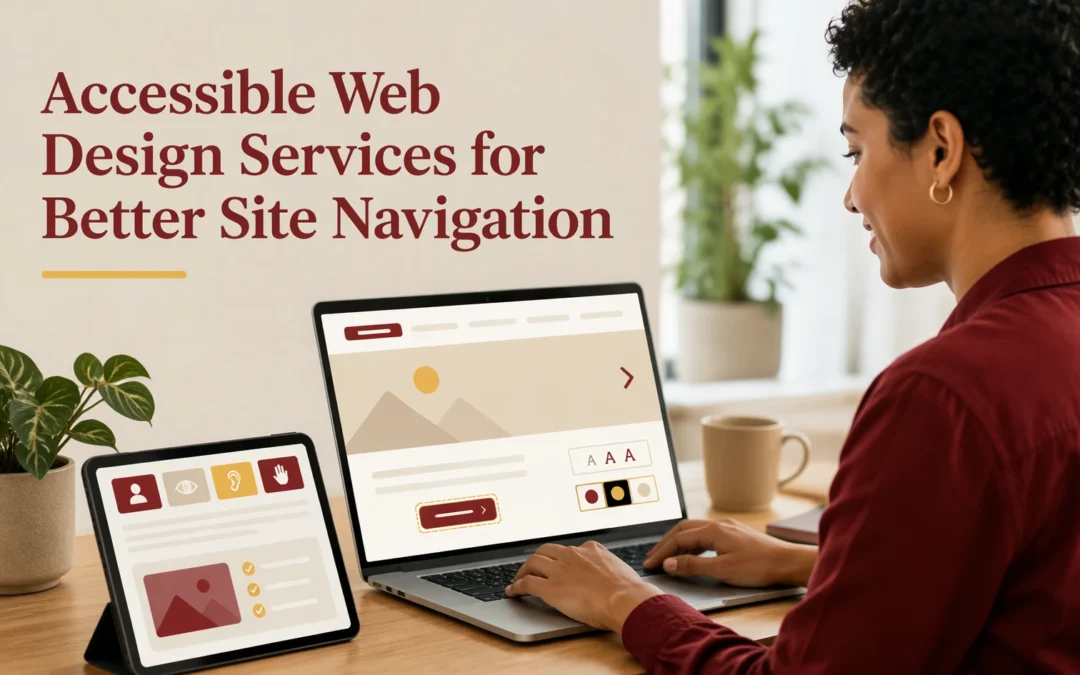
Designer and business owner reviewing website navigation flow on desktop and tablet
Design the navigation, then test it, then trim it. Keep labels plain, limit menu depth, add a visible skip link, and make focus states easy to spot. WebAIM says keyboard users need a logical tab order and visible focus while moving through links and controls WebAIM keyboard guidance.
Sites get hard to use when menus change by page, labels stay vague, or dropdowns only work on hover. Hidden focus states and broken tab order also block keyboard users. W3C says focus should move in a logical order that preserves meaning in WCAG focus order guidance.
What to fix first
Start with your main menu, page titles, and focus styles. Add a skip link, mark the current page clearly, and cut extra menu items. Yale also recommends multiple ways to reach content, like search, breadcrumbs, or a sitemap, in its navigation accessibility guidance.
If users cannot tell where they are or where to go next, navigation is failing.
Homepage
Need clearer navigation and better accessibility without more DIY work? Monkey Business builds, hosts, maintains, and supports compliant websites, so visitors find what they need faster.
Frequently Asked Questions
Q1: What are the best real-world examples of accessible website design in 2026?
Good examples use clear menus, strong contrast, keyboard support, skip links, and plain labels. The best business sites keep paths short, forms simple, and mobile navigation easy to use.
Q2: How can the W3C WAI Before and After Demo improve my team’s accessibility practices?
It shows side-by-side bad and better patterns. Your team can spot common navigation mistakes fast, then use the improved version as a simple model for menus, forms, and page structure.
Q3: What features make the U.S. Web Design System ideal for creating WCAG-compliant websites?
USWDS gives tested patterns for headers, navigation, buttons, forms, and alerts. That saves time, lowers guesswork, and helps teams build more consistent, accessible pages from the start.
Conclusion
Better navigation starts with accessible basics: keyboard use, visible focus, clear labels, and consistent menus. ADA guidance and WCAG 2.2 support the same point – easier paths help more people use your site.
Quick Summary: Accessible web design services cost more upfront but deliver better long-term ROI by reducing rework and increasing conversions. DIY tools may seem cheaper initially but often lead to hidden labor, missed leads, and higher costs later. For small businesses with complex needs or public-facing sites, professional services are usually the smarter choice. DIY works only for small, simple sites with minimal features and low risk.
For most small businesses, accessible web design services beat DIY Web Tools on Web Design ROI once you count labor, rework, and risk. DIY works when the site is small, cash is tight, and someone can own fixes. Owners weighing Web Design Costs need a clear view of Web Design Costs and future Web Design Costs. This comparison gives that view from real project, upkeep, and risk tradeoffs.
Accessible Web Design Services vs DIY Tools: Cost and ROI at a Glance
These are done-for-you teams that plan, build, test, and maintain your site with accessibility built in. They fit owners who want expert help, less internal work, and stronger odds of meeting ADA expectations while improving lead flow. Key strengths
Deeper manual testing and fixes
Faster launch for the owner
Better fit for risk reduction and ROI
DIY Tools
These are self-serve builders, scanners, and plugins your team uses on its own. They fit very small sites with a hands-on owner, but manual testing still matters because automated checks miss part of the picture.
Small business owner managing website edits at cluttered desk
The low sticker price often hides the highest time cost.
What professional services bundle into the price
Professional services cost more upfront because they bundle strategy, design, content setup, testing, hosting, updates, and support. They also reduce rework when accessibility issues show up later. For public entities, the DOJ’s rule also makes vendor-delivered content part of the accessibility scope, as shown in the 2026 compliance guide.
Professional accessible design usually wins on long-term ROI. It costs more upfront, but it helps more people complete key actions and cuts rework later.
How accessibility supports conversions: Clear labels, better contrast, usable forms, and keyboard-friendly menus remove friction for everyone, not just disabled users. That matters because WebAIM found 95.9% of home pages still have detectable WCAG failures. Fewer blockers means more completed checkouts, bookings, donations, and contact forms.
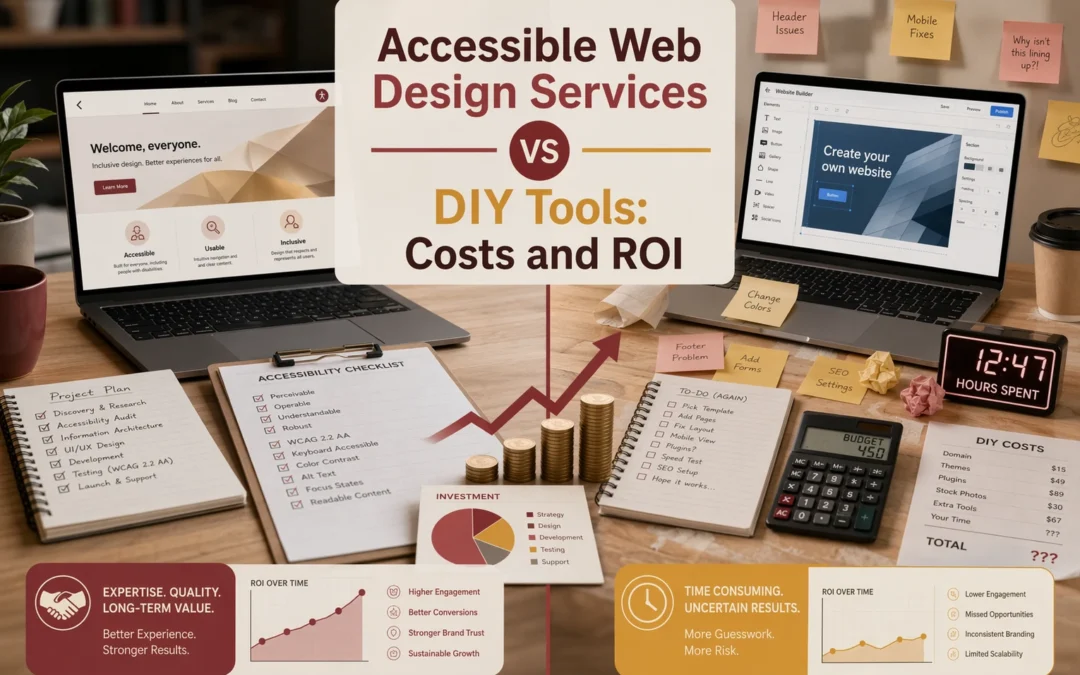
Comparison chart with professional and DIY web accessibility workflows
When DIY tools fail to produce ROI: DIY builders can help with basics, but they often miss real testing, content structure, and form logic. That creates hidden costs:
Staff time spent patching issues
Lower conversion rates
More expensive fixes later
If your site drives leads or sales, cheap setup can become expensive fast.
Use this test: DIY works if your site is small, you can stay within one template, and you only need basic fixes like alt text, headings, and color contrast. W3C says Level AA includes all A and AA requirements, and many groups aim for it, so the bar is not tiny W3C WCAG overview.
If you have forms, booking, payments, PDFs, or custom flows, hire help. W3C also notes conformance needs both automated and human testing W3C conformance guidance.
Choose DIY tools if your site is small, you can handle updates yourself, and low risk matters more than growth. Choose accessible web design services if your site brings leads, takes payments, or serves the public. The DOJ says public-facing businesses must provide equal access online under ADA web guidance and Title III rules. For most small businesses, done-for-you support cuts risk and saves time.
Homepage
Skip the DIY guesswork. Monkey Business gives you a done-for-you, accessible website with lower risk, predictable costs, and ongoing support.
Frequently Asked Questions
Q1: What are the key differences between accessible web design services and DIY tools for small businesses?
Services handle strategy, testing, fixes, and support. DIY tools give templates and basic checks, but you manage setup, content, compliance, and ongoing updates.
Q2: How does investing in professional accessible web design impact ROI compared to DIY solutions?
Professional work can lower risk, save staff time, improve lead flow, and reduce rebuild costs. DIY may cost less upfront but often creates hidden labor and missed sales.
Q3: What are the true costs and benefits of accessible web design services for small U.S. businesses?
True costs include design, audits, updates, training, and maintenance. Benefits include broader reach, better usability, stronger trust, and fewer legal and reputation problems.
Conclusion
Accessible web design usually beats DIY when you factor in fixes, missed leads, and risk. ADA.gov’s rule update and Stanford credibility research support the same point: usable, trustworthy sites perform better.
Quick Summary: Hiring a web design vendor in 2026 requires checking if they can prove how their process reduces legal and usability risks, not just claiming ADA compliance. Key questions include whether they meet WCAG 2.1 AA standards, handle accessibility details like alt text and keyboard navigation, and provide ongoing audits and documentation. Most issues arise after launch, so vendors should offer continuous support and clear records. Monkey Business is highlighted as a provider that offers comprehensive, ongoing ADA compliance support.
If you are hiring a U.S. Web Design vendor in 2026, the key test is not whether they claim ADA Compliance. It is whether they can prove how their process lowers risk. Many firms sell ADA Compliance as a widget, a policy page, or a launch-only check. This guide gives you 8 Accessibility Questions to compare ADA Compliance, WCAG 2.1 AA work, testing, fixes, and post-launch support before you buy.
Businesses that want audit-ready records and better accountability
Change logs, conformance notes, and issue tracking
No written record of accessibility work or fixes
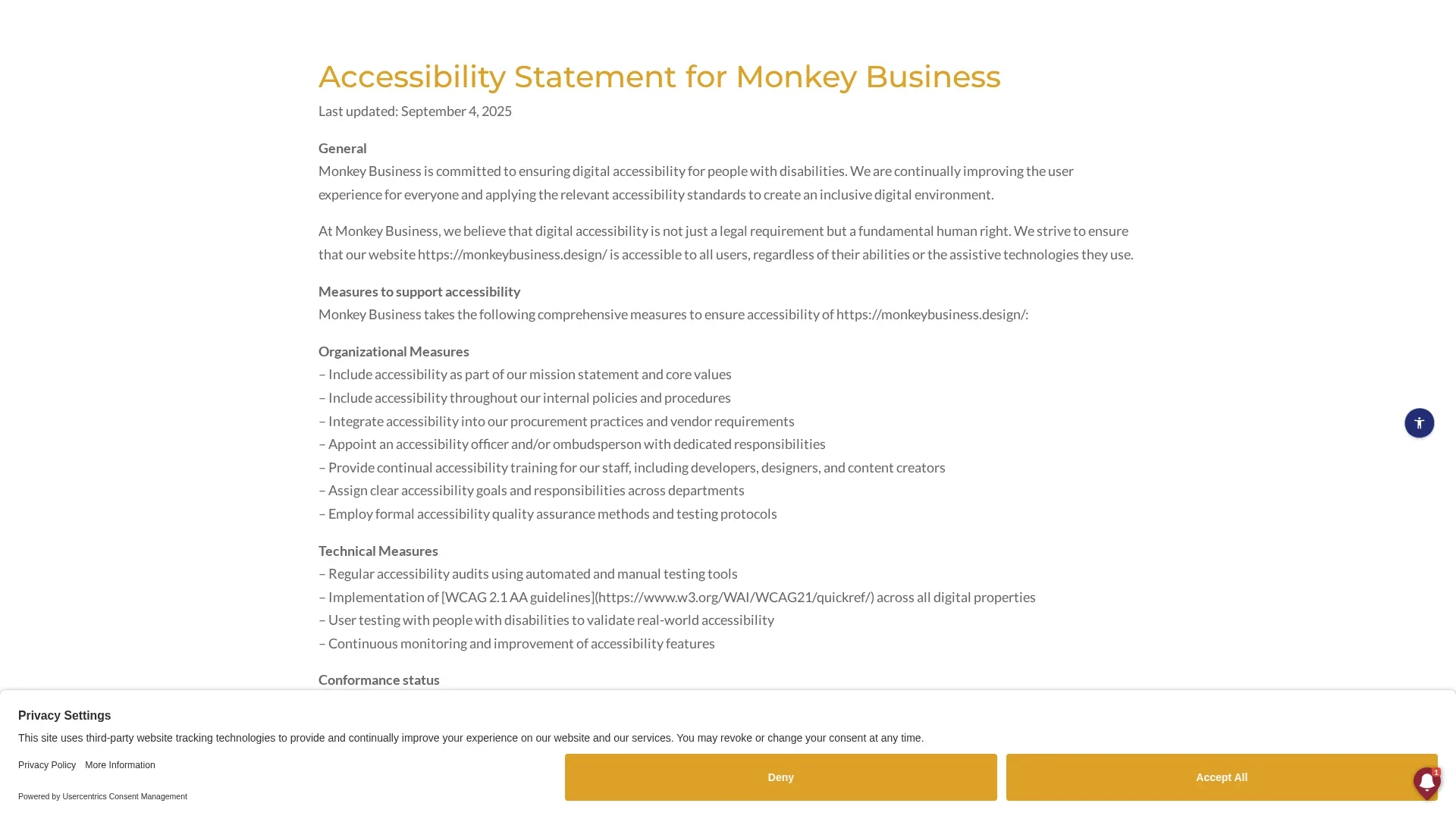
A clear accessibility statement plus documentation trail
What to know about ADA Compliance for web design vendors
ADA compliance is not a one-time website fix. It is a vendor’s ability to build accessible pages, test real user paths, document what they did, and keep the site usable as content changes.
That matters more now because buyers face more legal risk, stricter client expectations, and ongoing site updates. The best vendor questions expose how a team works day to day, not how polished their sales pitch sounds.
A good vendor should explain process, proof, and maintenance in plain English.
This is the first filter question. A real vendor should name WCAG 2.1 AA, explain coverage across full pages or flows, and show testing steps. W3C says conformance applies to full pages and complete processes, not vague “accessible-ready” claims. Highlights
Ask for the named standard, test method, and proof.
Good answers include automated, manual, and user testing, which W3C recommends. Pros
Clear baseline
Easier vendor comparison Cons
A statement alone is not ongoing maintenance
This ranks first because every other ADA promise depends on a real, testable standard.
These are daily-use basics, not bonus features. A solid vendor should explain how it writes alt text, adds captions, checks contrast against WCAG 2.2, and tests full keyboard use, including visible focus and no mouse-only traps. Highlights
Ask who writes and reviews alt text.
Confirm videos can include captions or transcripts.
Check contrast testing.
Require keyboard support.
Pros
Easy to verify
Covers common barriers
Cons
Content owners may still need to help
It ranks here because these failures are common and easy to spot before you sign.
Good vendors treat accessibility as ongoing work, not a launch-day task. Sites drift when content changes, plugins update, or new pages go live, and ADA.gov says accessible content must continue over time. Highlights
Ask if they do pre-launch and post-launch audits.
Confirm who fixes issues and how fast.
Check whether maintenance covers regressions after updates, as DOJ guidance notes.
Pros
Protects against drift
Clarifies ownership
Cons
Scope may be vague
Often needs a support plan
It ranks here because most failures appear after launch, not before.
Accessibility work needs a paper trail. That helps show diligence if a complaint or audit happens, and the DOJ has stressed planning and ongoing compliance in its web guidance. Highlights
Ask for a written scope, dated fixes, and change logs.
Keep remediation notes with legal and marketing files.
Specs
What to verify: Change logs, conformance notes, issue tracking, feedback contact
Why it ranks here: documentation is less visible, but critical for accountability and risk control.
Last updated: July 16, 2026
More accessibility questions worth asking
If a vendor answers the big ADA questions well, use these follow-ups to spot weak process gaps fast.
How do you test forms, menus, and mobile layouts for accessibility?
What happens if a new page or plugin introduces an accessibility issue?
Do you offer staff training or content guidance for accessible updates?
How do you support an accessibility statement and feedback process?
How to choose the right ADA Compliance vendor
Use these checks before you sign:
Ask which standard they follow. You want WCAG 2.1 AA or later, not vague claims like “fully accessible.”
Make them explain accessibility in plain build terms: alt text, captions, contrast, keyboard access, form labels, and focus states.
Pick a vendor that includes testing and fixes after launch. Problems often show up after new content goes live.
Check support for your content workflow if your team adds pages, PDFs, images, or videos.
Request audit summaries, issue logs, and follow-up notes.
For small teams that want done-for-you support, Monkey Business is the strongest fit because it pairs design, maintenance, and ongoing website support.
Homepage
Need a vendor that can answer these ADA questions clearly? Talk to Monkey Business for done-for-you, compliant web design, hosting, maintenance, and support.
Frequently Asked Questions
Q1: What are the key legal requirements for ADA compliance in U.S. web design in 2026?
U.S. law still does not name one web standard, but courts and settlements often expect accessible design, equal access, and quick fixes for barriers.
Q2: How do WCAG 2.1 Level AA standards impact ADA compliance for American websites?
WCAG 2.1 Level AA is the main benchmark vendors use. It shapes testing, design choices, content rules, forms, keyboard access, contrast, and error handling.
Q3: What are the best practices for designing an ADA-compliant website in the U.S. in 2026?
Ask vendors for audits, manual testing, screen reader checks, accessible templates, clear remediation plans, and ongoing support after launch.