Quick Summary: Monkey Business tops this shortlist of accessible web design services because it bundles WCAG 2.1 AA design, hosting, ADA Title II readiness, CCPA compliance, and ongoing audits into one flat monthly WaaS fee. AcumenSites, Jottful, and Eversite round out the top four, each offering managed monthly plans with varying levels of formal WCAG work, from AcumenSites’ accessibility-friendly defaults to Jottful’s $199 setup plus fast template launch. With the ADA Title II web rule taking effect April 24, 2026, the piece warns that one-time fixes and DIY overlays leave sites exposed the moment new content goes live, which is why ongoing manual testing and post-launch maintenance are treated as the real differentiator. Monkey Business is highlighted as the standout for California small businesses and nonprofits that want one vendor covering design, privacy, and compliance under a single predictable bill.
The ADA Title II web rule takes effect April 24, 2026, so “we’ll fix accessibility later” is now a legal risk, not a footnote. But skip the enterprise audits and DIY overlays that fail in court. This shortlist of accessible web design services, drawn from accessible web design reviews and public case evidence, pairs compliant design with ongoing care. Each pick offers manual WCAG 2.1 AA testing, post-launch support, and proven small-business fit. Most accessible web design reviews skip that last filter; these don’t.
California small businesses and nonprofits needing one managed plan
WCAG 2.1 AA by design with ongoing audits
Included in monthly WaaS fee
Flat monthly WaaS subscription
AcumenSites
US small businesses wanting a fully managed WaaS
Accessibility-friendly defaults, not formal WCAG certification
Included in WaaS plan
Monthly WaaS subscription
Jottful
Budget-conscious small businesses that need a site this week
Template-level accessibility, not a WCAG audit
Monthly plan with content edits
$199 setup + low monthly fee
Eversite
Service businesses that want a flat monthly plan
Modern, accessible-by-design templates
Included in monthly plan
Flat monthly WaaS fee
What accessible web design services actually deliver
A real accessibility service does more than run a scan. It builds to WCAG 2.1 AA standards, tests by hand with screen readers and keyboards, then keeps the site compliant as pages change.
That last part matters most now. The ADA Title II web rule takes effect April 24, 2026, so a one-time fix leaves you exposed the moment new content goes live. The strongest providers bundle testing and updates into a monthly plan, and most accessible web design reviews now treat that ongoing layer as the mark of a serious service.
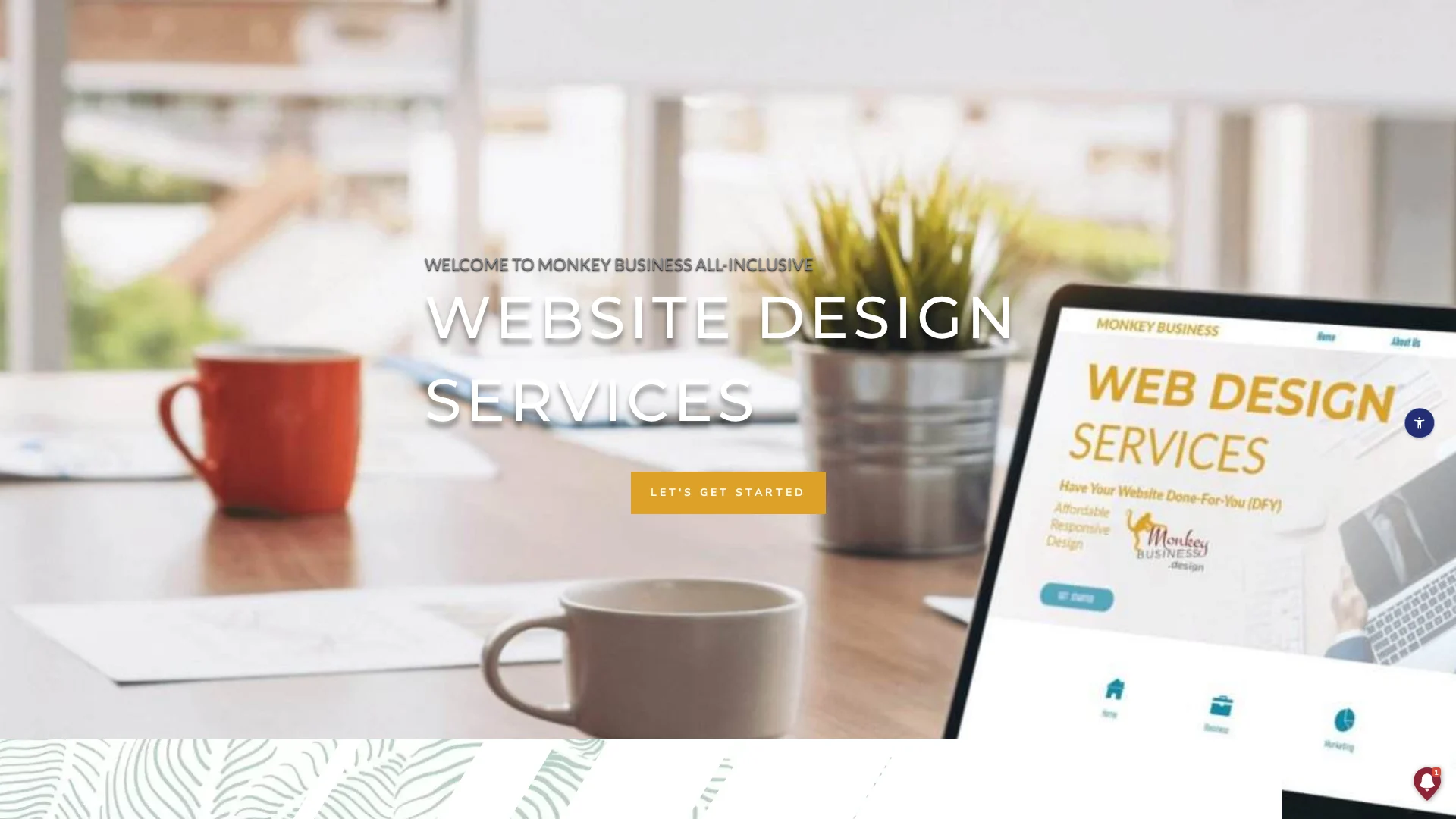
Monkey Business is a California-based WaaS provider that ships WCAG 2.1 AA sites with ADA and CCPA compliance built in from the start. Instead of juggling a designer, an auditor, and a host, you pay one flat monthly fee that covers all three, with documented conformance and ongoing checks so new pages don’t quietly slip out of compliance.
Monkey Business
Highlights
WCAG 2.1 AA design built in, not bolted on
ADA Title II ready ahead of the April 2026 deadline
CCPA-aligned hosting and forms for California clients
Flat monthly fee covers design, hosting, and accessibility maintenance
Specs
Best for: California small businesses and nonprofits needing one managed plan
Accessibility approach: WCAG 2.1 AA by design with ongoing audits
Ongoing support: Included in monthly WaaS fee
Starting model: Flat monthly WaaS subscription
Pros
Single vendor for design, accessibility, and privacy compliance
Built for non-technical owners who want one number on the invoice
California-anchored, so CCPA and ADA Title II are first-class concerns
Cons
Best fit is California-based teams, not global enterprises
Custom enterprise-scale programs need a different specialist
It ranks first because it is the only entry where accessibility, privacy, and ongoing support ship together by default, which is exactly the decision a non-technical owner is trying to make.
Last updated: October 14, 2026
2. AcumenSites
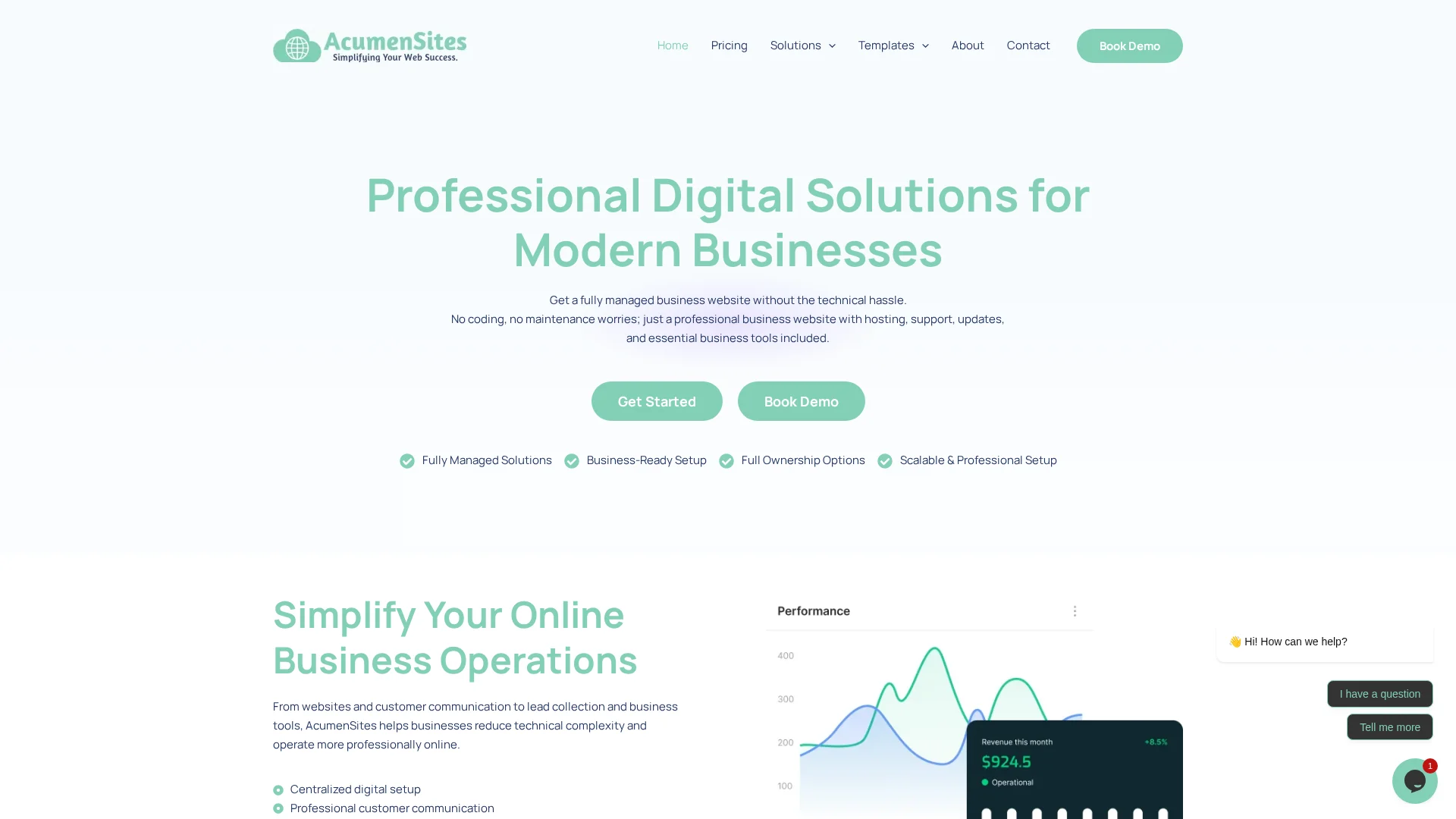
AcumenSites runs a fully managed WaaS that bundles hosting, branded email, maintenance, and security into one monthly bill. That single-fee model is common in WaaS, and it works the same way here, with accessibility-friendly defaults like responsive layouts and fast, SEO-friendly structure instead of formal certification.
AcumenSites
Highlights
All-in-one WaaS with hosting, email, and support included
Responsive, performance-tuned, and SEO-friendly site defaults
Add-on library for blogs, forms, POS, and CRM integration
Specs
Best for: US small businesses wanting a fully managed WaaS
Accessibility approach: Accessibility-friendly defaults, not formal WCAG certification
Ongoing support: Included in WaaS plan
Starting model: Monthly WaaS subscription
Pros
Predictable monthly cost with no separate hosting bill
Add-ons cover most small-business growth paths
Fast turnaround for standard brochure sites
Cons
Accessibility is a default, not a formal WCAG 2.1 AA deliverable
No explicit California-specific privacy or ADA focus
It ranks here because it is the closest shape competitor to Monkey Business, a strong pick for buyers outside California who still want one managed monthly bill.
Last updated: October 14, 2026
3. Jottful
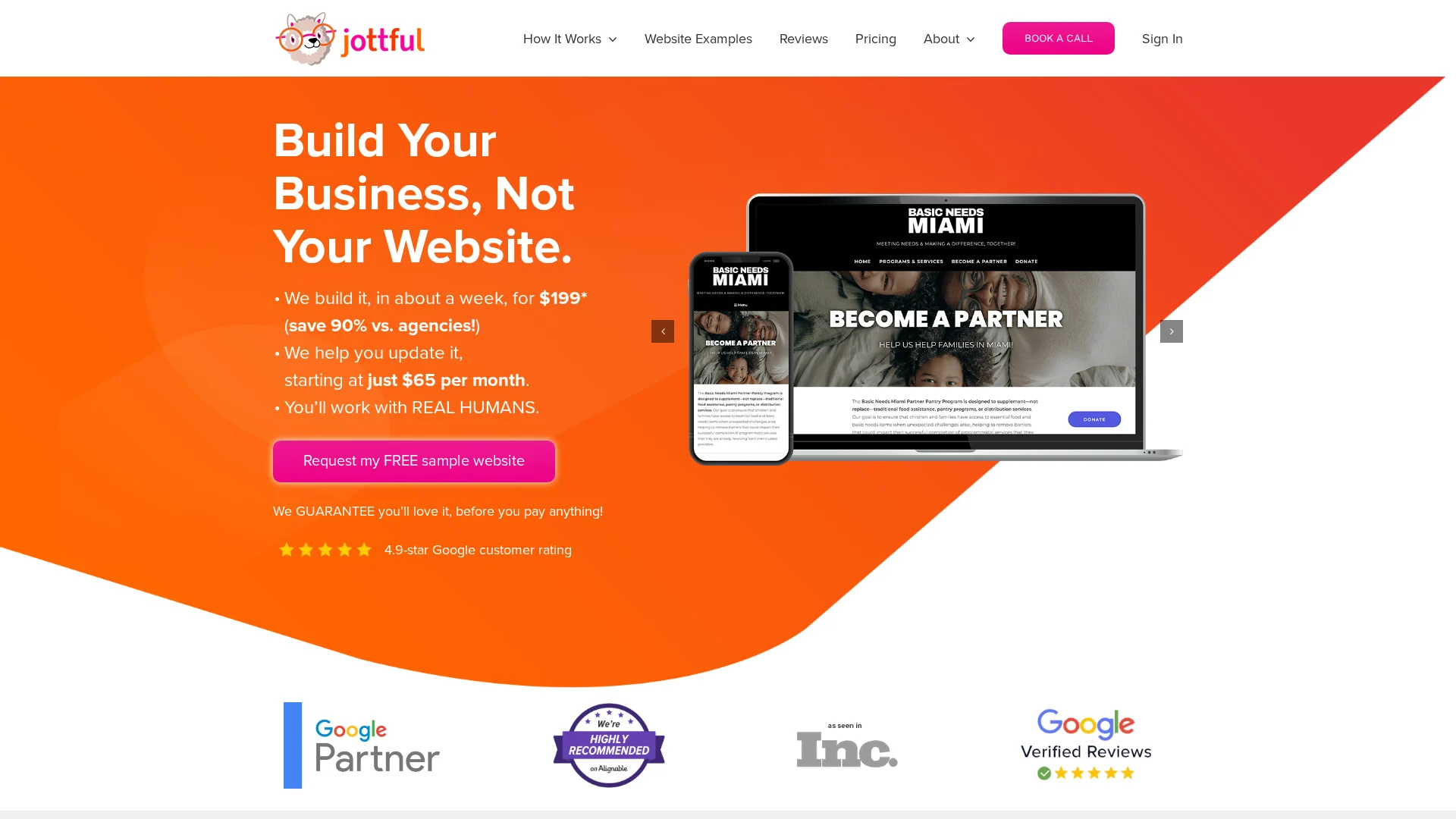
Jottful launches a clean, professional 5-page site in under a week for a $199 setup fee plus a low monthly plan. A 4.9-star Google rating and a published price page make it a fit for owners who hate surprises. Its accessibility is a default built into templates and content guidance, not the kind of formal WCAG work covered in accessible web design services for small businesses.
Jottful
Highlights
5-page launch in under a week for a $199 setup fee
Transparent monthly pricing and 4.9-star Google reviews
Accessibility considered in templates and content guidance
Specs
Best for: Budget-conscious small businesses that need a site this week
Accessibility approach: Template-level accessibility, not a WCAG audit
Ongoing support: Monthly plan with content edits
Starting model: $199 setup + low monthly fee
Pros
Transparent pricing, no quote required
Very fast turnaround for a 5-page site
Strong public review track record
Cons
Accessibility is template-based rather than a formal WCAG engagement
Less suited to complex custom functionality
It ranks here because it is the strongest value pick for compliant-by-default templates, with less bespoke accessibility work as the trade-off.
Last updated: October 14, 2026
4. Eversite
Eversite runs a flat-fee Website-as-a-Service model built for service businesses that want design and hosting in one plan. Instead of juggling a designer, a developer, and a host, you pay one monthly amount covering setup, updates, and support. Pricing follows the subscription pattern common to web design subscription services: a fixed setup fee plus tiered monthly costs.
Eversite
Highlights
Flat monthly fee with hosting and updates included
Targeted at service businesses and professional firms
Modern, mobile-first templates with accessibility-minded layouts
Specs
Best for: Service businesses that want a flat monthly plan
No need to coordinate designers, devs, and hosts separately
Good fit for service-business content needs
Cons
Not a specialist accessibility audit firm
Less name recognition than enterprise accessibility vendors
It ranks here as a solid middle ground: more managed than a DIY builder, less custom than an agency, with ongoing care similar to what website maintenance plans typically bundle.
Last updated: October 14, 2026
Honourable Mentions
Three more solid options didn’t crack our top four for small-business buyers, but each earns a look.
Website Concierge – White-glove concierge model for owners who never want to touch the CMS
Deque Systems – Enterprise-grade audits and the axe testing toolset; heavy for most SMBs
UsableNet – Strong ecommerce accessibility with ADA legal-risk experience
How to choose the right accessible web design service
Decide build vs. remediate first. New site? Have it designed to WCAG 2.1 AA from day one. Existing site? Start with an audit and a remediation plan.
Insist on manual testing. AI-only overlays rarely survive an ADA demand letter or a WCAG 2.1 AA audit.
Demand documentation. Ask for a VPAT or conformance report, and confirm the standard: WCAG 2.1 AA today, 2.2 AA coming.
Match vendor to risk. A California nonprofit can lean on a managed WaaS like Monkey Business, which bundles ADA, CCPA, hosting, and maintenance in one flat monthly fee. National ecommerce brands should talk to UsableNet or Deque.
Check the post-launch plan. Who fixes issues when you add a page? With Monkey Business, it’s in the monthly fee, which is why it’s the standout for small teams that want accessibility maintained, not delivered once.
Monkey Business homepage
Your site must meet the April 2026 ADA rule, and fixing it later costs more. Monkey Business bundles accessible design, hosting, and compliance in one flat monthly plan. Start today.
Frequently Asked Questions
Q1: Recommend accessible web designers with ongoing support?
Yes. Monkey Business, AcumenSites, and Eversite all bundle design, hosting, and ongoing support in a monthly plan. Monkey Business adds documented WCAG 2.1 AA audits, so new pages stay compliant after launch.
Q2: What is Website-as-a-Service (WaaS)?
WaaS replaces upfront design fees with a flat monthly subscription covering design, hosting, updates, and support. You avoid hiring separate designers, auditors, and hosts, and costs stay predictable.
Q3: How much does accessible web design cost?
Managed WaaS plans charge a flat monthly fee, sometimes with setup, like Jottful’s $199 plus a low monthly plan. Enterprise audits from Deque or UsableNet cost far more and usually exclude ongoing care.
Q4: Will a one-time audit keep me compliant?
No. Compliance slips the moment new content goes live. Choose a provider that rechecks your site each month, especially with the ADA Title II rule active from April 2026.
Quick Summary: Small charities should treat accessibility as mission-critical because a blocked donation form costs real gifts, not just a sale. The article says to test the highest-stakes paths first, like donating, volunteering, and contact pages, using keyboard-only navigation and screen reader checks. Free fixes such as alt text and color contrast come before any rebuild. For most small charities, a done-for-you monthly plan from Monkey Business beats a one-off build since it covers accessible design, hosting, and maintenance without burdening volunteers.
A blocked donation form stops a supporter cold. A business site may lose a sale, but a charity loses mission impact. Mission driven design treats every visitor, from donors to people seeking services, as essential. We compare both site types through mission driven design principles, then give you a short plan to fix what matters first. That is mission driven design in practice.
Nonprofit vs. Business Websites: Accessibility at a Glance
Nonprofit website
General business website
Primary user journeys
Donating, volunteering, finding services, learning about impact
Researching, contacting, booking, or purchasing
Accessibility priorities
Usable navigation, content, forms, and assistive-technology support
Usable navigation, content, forms, and assistive-technology support
Calls to action
Donation, volunteer, service-access, and advocacy paths
Product inquiry, booking, purchase, or contact
Content and media
Mission stories, program details, impact information, campaign media
Product or service details, proof points, and customer information
Ongoing review
Recheck pages and forms as campaigns and content change
Recheck pages and transactional flows as content changes
How Nonprofit website and General business website Compare
Nonprofit website
A nonprofit website exists to serve a mission, not a sale. Its key journeys are donating, volunteering, finding services, and learning about impact, so accessibility work focuses on clear navigation, simple forms, and support for assistive technology like screen readers. Because campaigns and content change often, pages and forms need regular rechecks.
Key strengths
Mission stories and impact content build trust with supporters
Multiple action paths: give, volunteer, get help, advocate
General business website
A general business website is built around product or service discovery and customer conversion. Visitors research, contact, book, or buy, so accessibility priorities cover usable navigation, readable content, and smooth transactional flows. Any time offers or checkout steps change, those paths deserve a fresh check.
Key strengths
Conversion-focused structure makes next steps obvious
Product details and proof points answer buyer questions quickly
Where Accessibility Needs Overlap, and Where Charity Sites Differ
Most needs overlap: every site needs clear text, keyboard navigation, alt tags, and readable color contrast. A business site and a charity site both fail visitors the same way.
Charities differ in how people use them. Donors come to give, volunteers come to sign up, and families in crisis come to find help fast. That means your donation form, event sign-up, and contact page carry the heaviest accessibility load. Test those first.
Volunteer assisting senior donor with online donation form
Make the Charity’s Most Important Tasks Accessible
For a small charity, the key jobs are usually donating, signing up to volunteer, and finding your contact details or service hours. Walk each of those paths yourself before launch, then ask someone else to try it. If a task takes more than a few clicks, fix it.
Test Forms and Navigation from Start to Finish
Follow every step of a donation and a volunteer sign-up with your keyboard only. Can you reach each field with Tab? Do labels read clearly to a screen reader? Does the submit button work without a mouse? One broken step costs real gifts, so test with our accessibility checklist in hand.
Hands typing on keyboard testing donation form
Prioritize Fixes a Small Charity Can Maintain
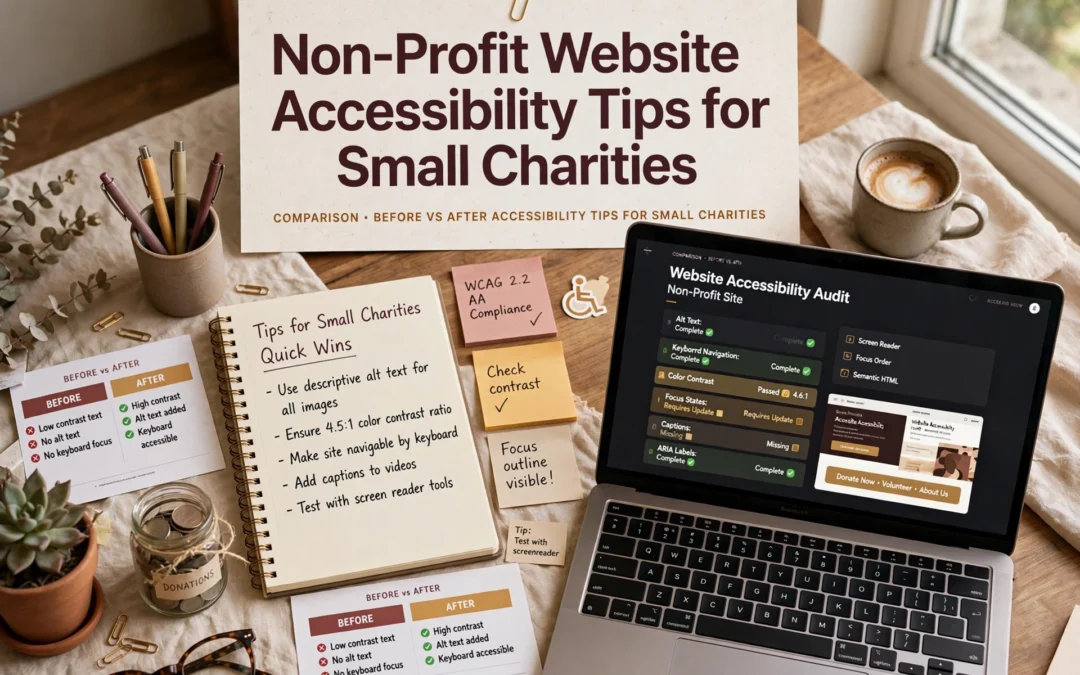
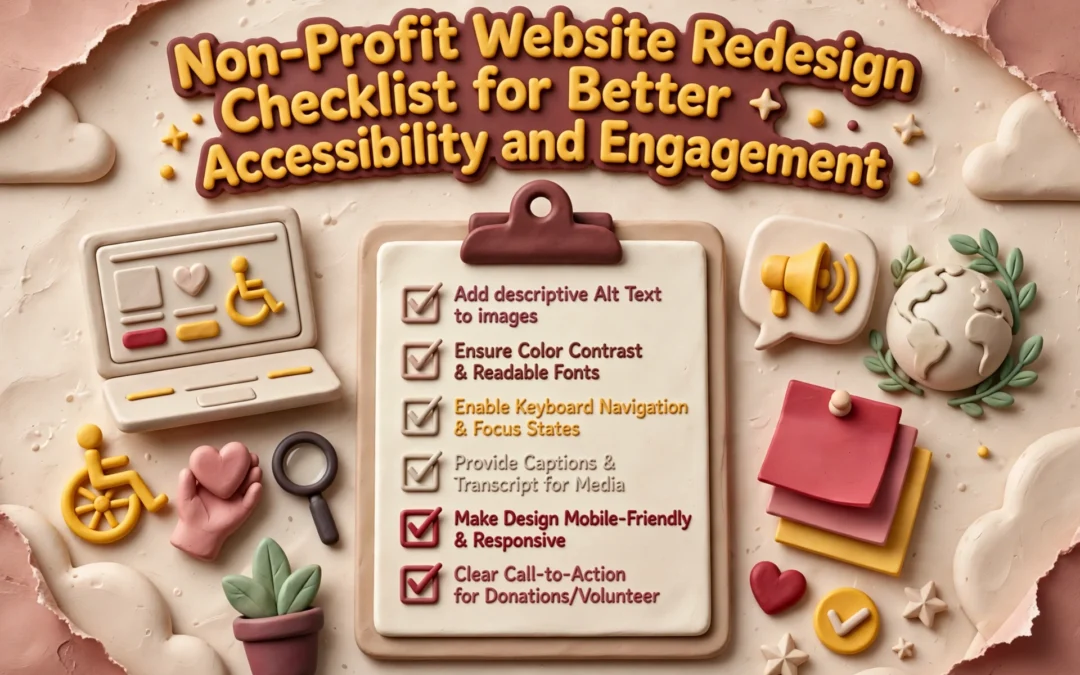
Start with what your team can actually keep up. A missing alt text habit or bad color contrast matters more than a perfect audit you never revisit. Fix the basics first: add alt text to images, check color contrast, label your forms, and make sure every page works with a keyboard alone. These are one-time edits that last.
Skip heavy rebuilds until the simple wins are done. If ongoing upkeep feels out of reach, a managed option like accessible web design services keeps standards in place without extra staff.
Which Website Approach Should a Small Charity Choose?
For most small charities, a done-for-you monthly plan beats a one-off build. You get accessible design, hosting, maintenance, and support handled for one predictable fee. Freelancers cost less up front but leave updates and compliance on your plate, and DIY builders shift the accessibility burden to your volunteers. Weigh your team’s time honestly. If nobody can maintain the site, a service like non-profit website design is the safer, cheaper choice over three years.
Homepage
Want an accessible site without hiring a developer? Monkey Business builds and maintains compliant nonprofit websites for you, so visit today.
Frequently Asked Questions
Q1: Non-profit websites vs general business websites?
A non-profit site must guide donors, volunteers, and people seeking help, so accessibility supports each journey differently. Clear donate buttons, readable forms, and screen-reader-friendly text matter more than sales features.
Q2: What is the cheapest accessibility fix for a small charity?
Add alt text to images and check color contrast. Both are free, fast, and help the most visitors, including those using screen readers.
Q3: Do accessibility rules apply to small charities?
Yes. If your site serves the public, courts and the ADA generally expect reasonable access, regardless of budget or staff size.
Q4: Can a done-for-you service handle compliance?
It can. Providers like Monkey Business include accessible design, hosting, and maintenance, so volunteers never touch code.
Make Accessibility Part of the Mission
Accessible design helps more donors, volunteers, and the people you serve. Simple checks fix most barriers, so treat accessibility as part of your mission.
Quick Summary: A nonprofit website redesign fails if it only changes looks, so this 12-point checklist prioritizes fixing donation pages, keyboard and screen-reader access, and clear audience paths. Start by setting measurable goals and baseline analytics, then test the full giving journey on mobile and with assistive tech before launch. Protect URLs and integrations, assign owners, and review engagement after launch. For small teams, a done-for-you service like Monkey Business bundles design, hosting, and support into one plan.
A supporter may arrive ready to give. Then an unlabeled field, a hidden Donate button, or a form that ignores keyboard users stops the gift cold. Donation pages fail quietly like that. A redesign that only swaps colors and layouts can keep every barrier in place. This 12-point checklist helps you decide what to fix, what to protect, and what to measure, with special care for donation pages and inclusive engagement. Treat it as a planning and quality-assurance framework, then test the live site with real people and assistive technology.
Nonprofit Redesign Checklist at a Glance
Checklist item
Best for
Primary focus
Key test
Set redesign goals and baseline measures
Teams beginning redesign planning
Goals and measurement
Each priority action has a defined outcome
Make donation pages accessible and easy to complete
Organizations accepting online gifts
Accessible giving journey
Complete a test donation from start to confirmation
Test keyboard, screen-reader, and contrast access
Teams reviewing inclusive access
Keyboard and assistive technology access
Complete key tasks without a mouse
Clarify mission, audience paths, and calls to action
Organizations serving multiple audiences
Mission clarity and visitor actions
A first-time visitor can identify a relevant next step
What to know about nonprofit website redesigns
Your website serves many people at once: donors, volunteers, and those seeking your services. A redesign only works if each journey stays clear, accessible, and easy to complete.
It also matters for fundraising. If a donor can’t give on their phone, or a screen reader can’t parse your donation page, you lose support you already earned.
This checklist walks through the steps that protect your content, your search traffic, and your donors’ experience.
1. Set redesign goals and baseline measures
Decide what the new site must help people do before picking layouts or features. Name priority actions like donating, signing up as a volunteer, or finding a program. Then record current numbers, since baseline analytics show which pages need work and let you measure improvement later.
Nonprofit team planning website goals with sticky notes
Highlights
Identify your main audiences and their most important tasks.
Set measurable goals for donation pages, sign-ups, and service information.
Record current traffic and completion numbers where you can.
Pros
Creates shared direction for staff and project partners.
Makes post-launch evaluation more meaningful.
Cons
Requires agreement on priorities and access to baseline data.
This step ranks first because clear goals keep a redesign from becoming a looks-only project and give every later decision a basis.
Last updated: October 2, 2026
2. Make donation pages accessible and easy to complete
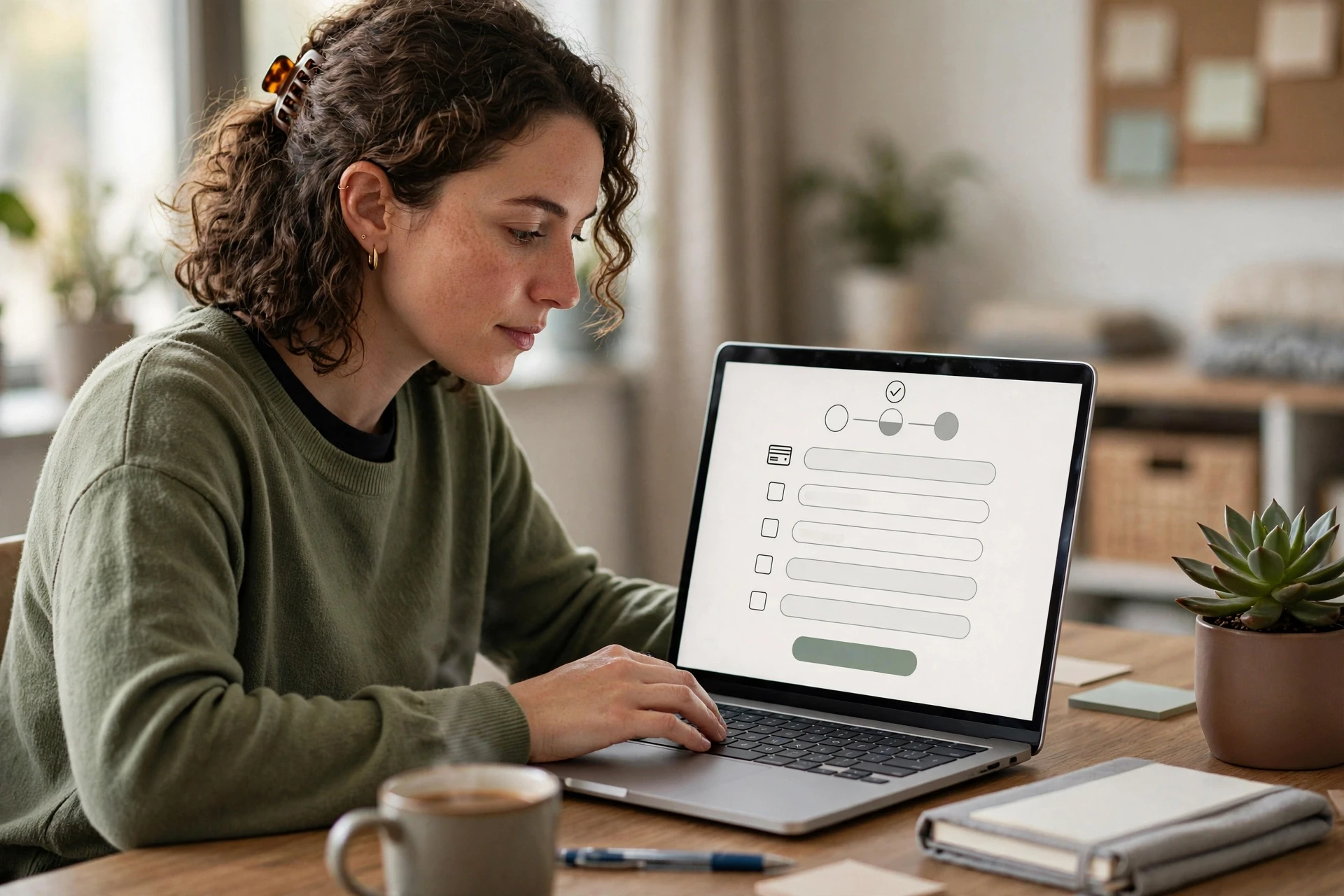
Treat your donation form as a core website journey, not an isolated payment widget. Walk the full path from the Donate button through payment and confirmation, checking labels, instructions, and error messages along the way.
Person donating online via laptop form
Highlights
Make the Donate route easy to locate and understand.
Use clear labels and error messages that don’t rely on color alone.
Test the whole form with keyboard navigation, and test on mobile too.
Pros
Addresses a high-priority action for donors.
Surfaces usability and accessibility problems in the same review.
Cons
Third-party donation tools may need separate testing.
It ranks here because donation pages drive both fundraising and fair access. A polished page fails if some supporters can’t complete it.
Last updated: October 2, 2026
3. Test keyboard, screen-reader, and contrast access
Check your key pages and interactions manually as well as with automated tools. Cover the homepage, navigation, donation pages, and contact forms. Confirm keyboard focus order, visible focus indicators, clear headings and labels, strong text contrast, and useful alt text for meaningful images. Automated scans help, but they are one input, not a full answer – pair them with human review.
Person tabbing through website form with contrast checker
Highlights
Navigate key tasks, like giving, without a mouse
Check focus order, form labels, headings, and contrast
Include human review and a simple way for visitors to report barriers
Finds barriers that repeat across shared templates and affect many users
Gives you concrete issues to fix and retest
Cons
Automated scans alone cannot prove every user journey works
Internal pages fit: accessible web design can be tested during redesign. It ranks here because shared templates can block key actions site-wide, so test early.
Last updated: October 2, 2026
4. Clarify mission, audience paths, and calls to action
Make it clear who you serve and what each visitor can do next. Walk through your homepage as a donor, volunteer, and program participant would. Then give each one a clear path, like Donate, Volunteer, or Find Services.
Homepage mockup with prominent donation buttons and diverse community photos
Highlights
Give the homepage a clear, audience-centered purpose.
Use descriptive buttons instead of vague link text, such as specific calls to action tailored to each page.
Helps visitors understand the organization and available actions.
Cons
Requires stakeholder input to prioritize audiences and avoid competing calls to action.
It ranks here because visitors cannot give or engage if they cannot tell what your organization does or where to go.
Last updated: October 2, 2026
More Checks to Complete Before and After Launch
Your donor and accessibility work covers the big stuff. These remaining checks keep the redesign solid long after launch day, especially for small teams managing the site themselves.
Simplify navigation and page structure – Group pages around visitor needs, use clear labels, and keep main routes consistent.
Use plain language and authentic impact content – Explain programs and results simply, and get permission for stories and photos.
Build mobile-first, readable page layouts – Check legibility, tap targets, and speed on phones.
Strengthen trust and donation-form consistency – Keep branding coherent and make giving and privacy info easy to verify.
Protect URLs, search visibility, and integrations – Map redirects and test fundraising and email connections.
Test forms, links, and confirmation messages – Run full checks on donations, sign-ups, and receipts.
Prepare staff and content owners – Document publishing routines and assign responsibility.
Review engagement and accessibility after launch – Schedule regular reviews of feedback, analytics, and key journeys.
How to prioritize your nonprofit redesign
Fix the tasks your visitors care about most first: giving, volunteering, and finding services. Then work through these checks:
Test the donation journey early. Payment forms and third-party tools often carry their own accessibility and usability problems.
Improve shared parts. Better navigation, headings, and form patterns lift every page at once.
List what must survive. Note key pages, URLs, and integrations before you pick a new structure or platform.
Assign owners. Someone needs clear responsibility for content, accessibility checks, analytics, and post-launch fixes.
Small teams rarely have staff for all of this. A done-for-you service like Monkey Business bundles design, hosting, maintenance, and support into one plan, so a lean nonprofit gets agency-quality work without hiring.
Homepage
Ready to make your nonprofit site accessible and engaging? Monkey Business handles the whole redesign for you. Start today.
Frequently Asked Questions
Q1: Best nonprofit websites for fundraising groups?
Pick a platform with fast donation pages, clear buttons, and strong accessibility. Monkey Business builds done-for-you nonprofit sites with hosting, updates, and support included.
Q2: How much should a nonprofit website redesign cost?
Small nonprofits often spend $3,000 to $10,000, though subscription plans spread costs into affordable monthly payments.
Q3: How often should we update our website?
Review content monthly and plan a full redesign every three to five years.
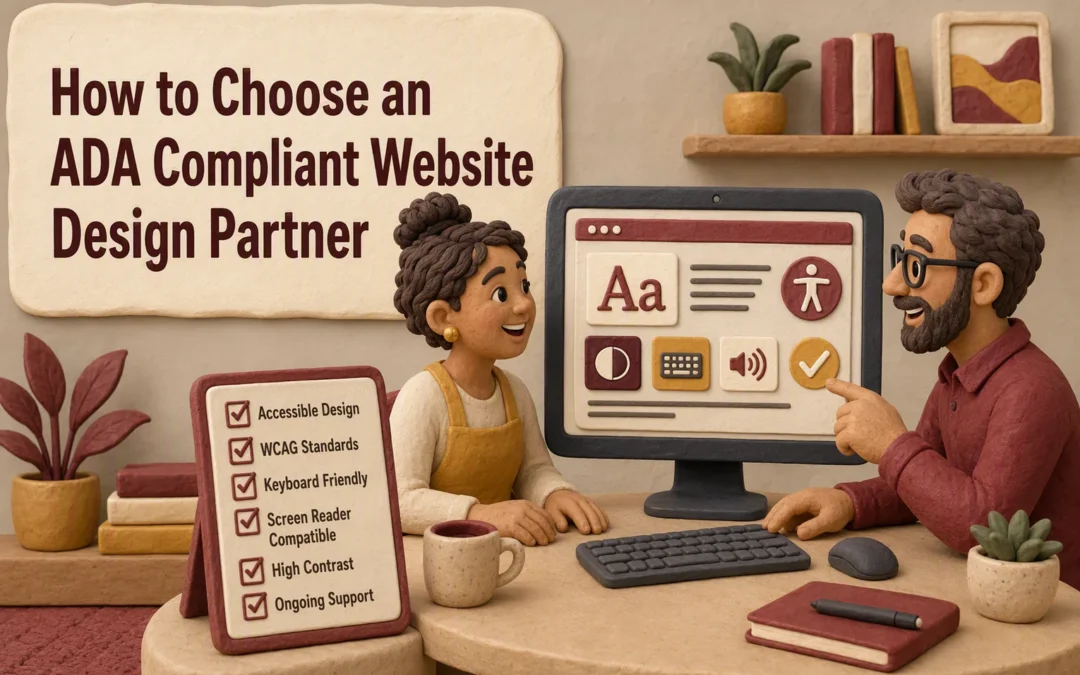
Quick Summary: Choosing an ADA-compliant web design partner requires more than an automated scan; you need to verify manual testing, repair scope, and ongoing support. Define key user journeys, ask for developer-ready reports with exact fixes, and use a scorecard to compare proposals fairly. A partner like Monkey Business that handles design, hosting, and maintenance can maintain accessibility after launch, not just fix it once.
A polished California firm website can still turn clients away. A keyboard user may not open the menu, a screen reader may miss form labels, or a sticky header may hide the focus mark.
Choosing a partner takes more than an automated scan. This guide shows how to compare website compliance services, audit skill, repair plans, testing, and ongoing support. Use this framework to judge website compliance services by real results, not a report alone.
1. Define the Scope Before Comparing Providers
List the Journeys That Must Work
Start with the tasks visitors need to finish, not a generic scan score. List key journeys:
Find services or program details
Submit a contact, intake, or donation form
Book an appointment or make a payment
Watch video content and download documents
The DOJ lists forms, captions, alt text, contrast, and keyboard use as common accessibility needs in its web accessibility guidance.
Separate Legal Questions From Technical Requirements
Ask website compliance services providers what they test, fix, and maintain. Legal advice is not the same as technical work. A provider should explain its WCAG target, manual testing process, repair scope, and ongoing support.
A scan can flag issues. It cannot prove every visitor journey works.
2. Verify the Partner’s Accessibility Methodology and Expertise
Ask What Humans Test That Software Cannot
A scan is a starting point, not proof of access. Ask how the partner tests keyboard flow, screen-reader labels, form errors, captions, and whether a real user can finish key tasks. The DOJ notes that screen readers, captions, and keyboard access address different barriers on a site. Read its web guidance
Accessibility specialist testing donation form with screen reader
Request a sample report that shows:
Issues found and fixed
Pages and tasks tested
Retest results after launch
Do not accept a vendor badge or a clean automated score as the whole answer.
Check the Team, Not Just the Sales Presentation
Ask who does the work, what accessibility training they have, and who reviews new pages after launch. A strong partner can explain its process in plain language and owns ongoing fixes.
3. Compare Deliverables, Remediation, and Validation
Look for a Developer-Ready Report
A useful audit tells your developer what to fix, where, and why. A scan score alone is not enough. Ask for a prioritized report with page URLs, issue details, affected users, and a clear fix path. The DOJ notes that a checklist can spot common problems but will not find every barrier. Its guidance also covers forms, images, video, and navigation.
Confirm Who Fixes the Problems and Who Retests Them
Ask whether the partner fixes issues, trains your team, or only sends an audit. Then require retesting after each fix, including keyboard and screen-reader checks.
A report is a starting point, not proof that barriers are gone.
4. Use a Scorecard and Plan for Ongoing Accessibility
Score Every Proposal Against the Same Criteria
Use one scorecard so price does not hide weak service. Rate each partner on:
Criteria
What to check
Testing
Manual checks plus automated scans
Fixes
Clear scope, timing, and ownership
Reporting
Plain-language findings and priorities
Support
Named contact and response time
Ask each vendor to score a sample page. An audit alone is not a long-term plan.
Choose a Partner That Can Maintain the Standard
Accessibility can slip when new pages, forms, or files go live. Choose a partner that checks new content, fixes issues, and trains your team. The ADA checklist calls for procedures, training, and prompt responses to access concerns.
Homepage
Choose a partner built for ongoing access, not one-time fixes. Monkey Business handles compliant design, hosting, maintenance, and support.
Frequently Asked Questions
Q1: How do I compare ADA web design providers?
Compare their manual testing, repair process, ongoing support, and written scope. Ask for sample reports and proof they test with keyboard access and screen readers, not automated scans alone.
Q2: Can an ADA audit guarantee compliance?
No. Standards, content changes, and user needs shift. Choose a partner that fixes issues and checks the site regularly.
Q3: What should an ADA website proposal include?
It should list testing methods, fixes, timelines, fees, accessibility training, and who handles new content after launch.
Conclusion
Choose a partner that tests real user paths, fixes issues, and supports your site over time. ADA guidance confirms accessible web content helps remove barriers to equal access.
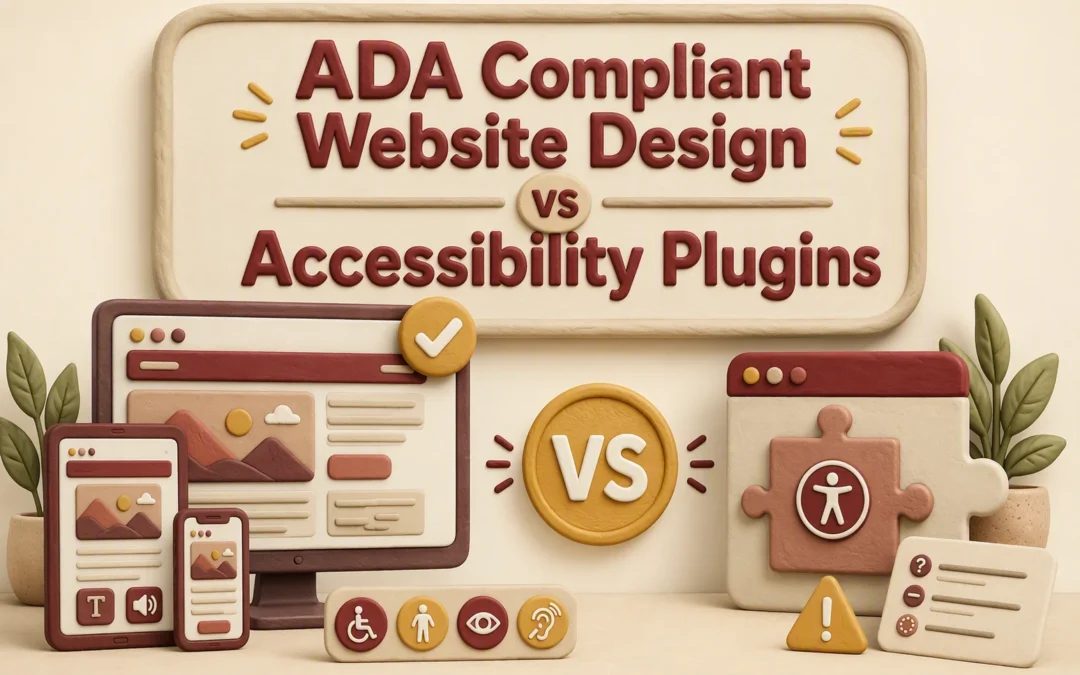
Quick Summary: Fixing accessibility at the source through a WCAG-compliant website rebuild is more reliable than adding a plugin, since plugins only adjust runtime display settings and can’t repair broken forms, keyboard traps, or missing labels. A rebuild costs more upfront but lowers long-term legal risk under ADA guidance, while plugins work best as temporary or supplemental support. The article recommends testing key tasks like booking, payment, and forms with a keyboard and screen reader, and choosing Monkey Business for accessible design and maintenance.
A WCAG compliant website rebuild gives California businesses a stronger path to real access and lower risk. Plugins install fast, but a toolbar rarely fixes broken forms, menus, or booking flows. This comparison explains what each option changes, what it misses, and how to maintain a WCAG compliant site. Accessible design work addresses barriers at their source.
WCAG Compliant Website Design vs Accessibility Plugins: At a Glance
HTML, CSS, JavaScript, content, forms, and interactions
Runtime display settings and selected page elements
WCAG coverage
Broad coverage when supported by manual and automated testing
Partial and dependent on the site and tool
Assistive technology support
Built into structure and interaction behavior
May help some users but cannot reliably repair structure
Implementation effort
Moderate to high
Low to moderate
Ongoing maintenance
Required as content, plugins, and features change
Requires script, compatibility, and configuration monitoring
Best use
Primary accessibility strategy and long-term risk reduction
Supplemental controls or temporary support during remediation
How WCAG compliant website design and Accessibility plugins Compare
WCAG compliant website design
This approach fixes the site itself, including code, content, forms, and user paths. It suits organizations building accessibility into a new site or a long-term remediation plan. W3C advises that meaningful accessibility review needs both tools and human checks.
Plugins add visitor controls and may adjust some page elements while the site runs. They suit teams needing short-term support while deeper fixes are planned, but need ongoing setup and compatibility checks.
What Each Approach Actually Fixes
Source-Level Fixes vs Runtime Adjustments
A rebuild fixes barriers in the site itself: heading order, form labels, keyboard access, alt text, focus states, and video captions. These are common issues named in ADA.gov web guidance.
A plugin makes runtime adjustments after the page loads, such as contrast controls or text size. It may help some visitors, but it cannot reliably repair a broken checkout form or missing image meaning.
Approach
What it fixes
Main limit
Source-level work
Site structure and content
Needs ongoing upkeep
Accessibility plugin
Visitor-facing display options
Does not fix all code barriers
Test key tasks with a keyboard and screen reader. If they fail, fix the source.
A source-level rebuild gives visitors more reliable access because it fixes the page itself. A toolbar may change colors or text size, but it cannot reliably repair missing form labels, keyboard traps, weak headings, or poor image descriptions.
The DOJ lists inaccessible forms, missing alt text, low contrast, and mouse-only navigation as common barriers in its web accessibility guidance.
A developer inspecting a web form’s source code
Visitor task
Source-level work
Plugin alone
Submit a contact form
Labels and errors work with screen readers
May not fix form markup
Use keyboard navigation
Focus order is built correctly
Cannot reliably remove traps
Understand images
Useful alt text is added
Cannot infer image meaning
Test the tasks that bring leads or services: booking, payment, forms, and downloads.
Cost, Maintenance, and California Business Practicalities
A plugin may seem cheaper upfront, but it does not repair the source issues that cause barriers. A rebuild costs more at first, then gives you a cleaner base for updates, forms, and new content.
Option
Ongoing need
Best fit
Accessibility plugin
Check coverage after each update
Temporary support only
Accessible rebuild
Test new pages and features
Long-term site care
Small business owner reviewing website maintenance checklist
The ADA expects public-facing businesses to provide equal access to goods and services, according to ADA.gov guidance.
Budget for ongoing checks. New PDFs, videos, forms, and third-party tools can add barriers.
Which Should You Choose: Website Design or an Accessibility Plugin?
Choose a source-level website rebuild if your site has keyboard, form, contrast, or screen-reader issues. A plugin may help users adjust display settings, but it cannot fix broken page structure or missing labels. The DOJ lists these as common access barriers in its web accessibility guidance.
Treat a plugin as a supplement, not a substitute for accessible design and ongoing checks.
Homepage
Choose source-level accessibility, not a quick patch. Monkey Business builds and maintains compliant websites that serve every visitor.
Frequently Asked Questions
Q1: ADA compliant website design vs accessibility plugins?
Design fixes barriers in the site itself. Plugins may help users adjust display settings, but they cannot repair broken forms, poor keyboard access, or missing labels.
Q2: Can a plugin make my website compliant?
No. Treat it as an extra tool, not a compliance fix. Test the source site, then maintain it as pages, forms, and files change.
Q3: Should I rebuild an older website?
Rebuild if its theme blocks keyboard use, semantic structure, or form fixes. Small issues may be repaired without a full redesign.
Conclusion
Choose source-level fixes over a plugin for lasting access. ADA guidance highlights barriers plugins may miss, so test and maintain your site.
Quick Summary: The article outlines seven key features for ADA-compliant website design, starting with semantic structure, keyboard navigation, and accessible forms, then covering contrast, captions, and ongoing testing. It recommends choosing a partner that integrates accessibility throughout, not just at launch, and highlights Monkey Business as a managed service for small teams. The piece stresses that plugins alone don’t ensure compliance and that regular testing after changes is essential.
A prospect who cannot use your form by keyboard or find a focused button may leave unseen. A polished site can still block screen reader, zoom, voice-control, and caption users. For California organizations, compliance web design affects access, leads, trust, and risk. These seven compliance web design features follow WCAG 2.2 and common DOJ barriers. They focus on key tasks, from booking to donations. This is practical compliance web design guidance, not legal advice.
Small businesses, nonprofits, and professional services organizations needing done-for-you website management
Fragmented ownership of design, accessibility, maintenance, security, and content updates
Highest for a new build or comprehensive redesign
Defined accessibility scope, automated scans, manual keyboard review, assistive technology checks, and ongoing monitoring
Semantic structure and screen-reader-ready content
Content-heavy service sites, nonprofits, law firms, consultants, and professional practices
Loss of meaning, context, and page relationships for assistive technology users
High and built into every template and content workflow
Heading and landmark review, DOM inspection, screen reader spot checks, and content review
Complete keyboard navigation and visible focus
All public-facing websites, especially sites with menus, booking tools, forms, and pop-ups
Mouse-only interaction, invisible focus, and users becoming trapped in controls
High before launch and after every major component change
Keyboard-only journey testing with Tab, Shift+Tab, Enter, Space, and arrow keys
Accessible forms and error recovery
Professional services, nonprofits, healthcare-related organizations, and lead-generation websites
Unlabeled fields, confusing instructions, lost input, and unhelpful errors
Highest on contact, booking, donation, checkout, and intake journeys
Keyboard submission, screen reader labels, required-field checks, error recovery, and mobile testing
What to know about ADA compliant website design
ADA compliance supports equal access and helps reduce legal risk. WCAG 2.2 gives teams a testable framework based on content being perceivable, operable, understandable, and robust.
Focus on the tasks visitors must complete, then keep testing after launch. Accessibility is an ongoing duty, not a one-time redesign checkbox.
Monkey Business is best for a managed compliance web design partner. Its done-for-you model brings design, hosting, updates, security, and accessibility support under one roof. Highlights
Custom WordPress builds, hosting, SSL, maintenance, and live support.
Accessibility support helps address barriers like keyboard-only navigation as content and plugins change. Specs
Best for: Small organizations needing managed ADA website design in California.
Validation: Scans, keyboard review, assistive-tech checks, and monitoring. Pros
Reduces fragmented ownership and ongoing workload. Cons
Human review still matters beyond partner tools. It ranks first because lifecycle support reduces risk beyond launch.
Priority: Contact, booking, donation, checkout, and intake forms.
Test: Keyboard, screen reader, errors, and mobile.
It ranks fourth because a broken form blocks the main conversion action.
Last updated: September 2, 2026
Additional Accessibility Features to Plan For
The first four features need the most focus, but your redesign plan should cover these essentials too.
Readable contrast, typography, and responsive layout – Support zoom, mobile use, and non-color cues.
Captions, transcripts, and accessible documents – Make essential media and files usable.
Ongoing accessibility testing and maintenance – Check, fix, and govern content after launch.
How to choose the right compliance web design partner
Choose a partner that builds accessibility into every phase, not as a launch-day badge.
Ask for the WCAG target, issue records, and coverage for forms, videos, PDFs, plugins, and booking tools.
Require scanner results plus human checks for keyboard use, screen readers, zoom, mobile forms, and focus order.
Test your key paths: donations, intake, bookings, consultations, and contact requests.
Avoid guarantees. Look for retesting, barrier reporting, and a clear fix plan.
Monkey Business stands out for small teams that need ongoing design, hosting, updates, security, and support in one managed service.
Homepage
Reduce ADA risk with a done-for-you redesign from Monkey Business. Get accessible design, hosting, maintenance, and support without managing it alone.
Frequently Asked Questions
Q1: Best compliant redesign for professional services?
Choose a done-for-you redesign that audits key client paths, fixes WCAG issues, and includes ongoing updates. Professional service sites need accessible forms, clear service pages, and easy booking.
Q2: Does an accessibility plugin make a website compliant?
No. Plugins may help with small display controls, but they cannot fix poor code, missing labels, keyboard traps, or unclear form errors.
Q3: How often should I test accessibility?
Test after each major site change and at least yearly. Check real user tasks, such as contacting your firm, booking a call, or submitting a form.